Improve Performance
Voxel reconstruction and voxel rendering are very computation-intensive. Here are some tips to improve the add-on's performance.
Use Low-Resolution Data as Preview
The resolution of voxels geometrically affects computational efficiency. Enabling Resample on O Layer can greatly improve calculation speed. You can uncheck it when you need to render for real. The Layer Nodes panel in the Bioxel Nodes tab lists all O Layers added in the current geometry nodes. You can uniformly manage whether Resample is enabled and the degree of resampling.
Balanced Rendering Settings
I list some settings that have the greatest impact on volume rendering, so you can find the most suitable balance for your needs.
-
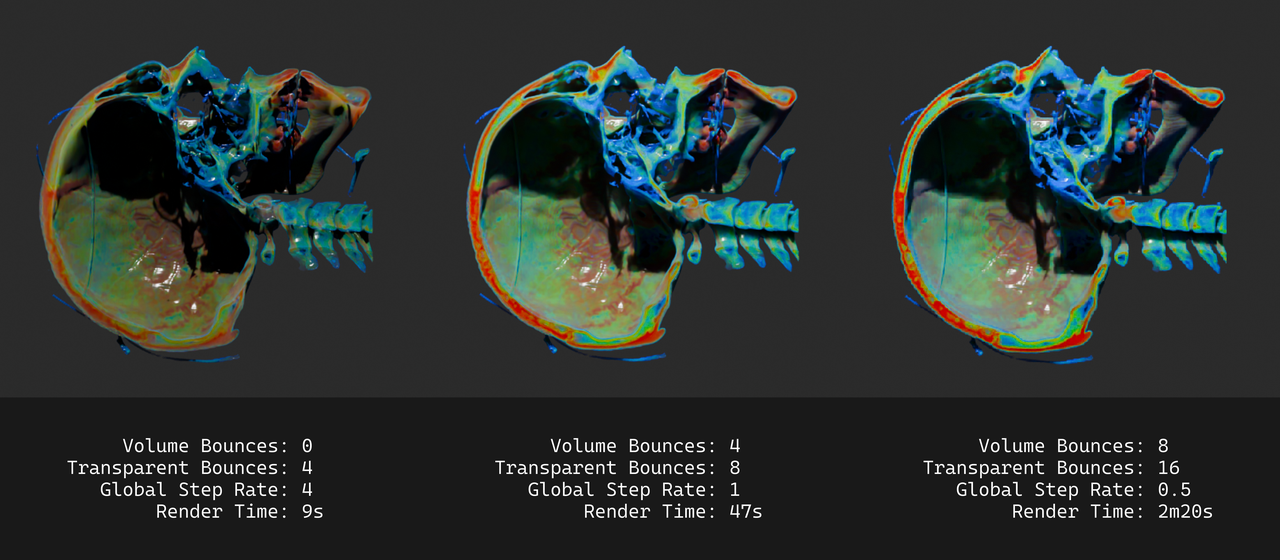
Light Paths > Max Bounces > Volume affects the number of bounces for volume data. The higher the value, the more transparent the volume data appears.
-
Light Paths > Max Bounces > Transparent affects the number of times transparent surfaces are transmitted. The higher the value, the more transparent the transparent surfaces appear.
-
Volumes > Step Rate Render | Viewport affects the step size of volume rendering. The smaller the value, the more detailed the volume data appears.
Bioxel Nodes provides some render setting presets for quick configuration. Click the top menu Bioxel Nodes > Render Setting Presets, including Performance (left), Balance (center), and Quality (right). Here is a comparison:
Rendering with EEVEE
EEVEE doesn't render volume as well as Cycles, but it does have the advantage of rendering volumetric data. If you want to get a clear slice view, it is even a better choice. EEVEE's real-time rendering makes it possible to create interactive content in Blender.