Bacsic Usage
1. Download Data
Download and unzip VHP_M_CT_Head.zip to a folder. The data comes from Visible Human Project (VHP), which is a CT scan image of a male head.
2. Import as "Layer"
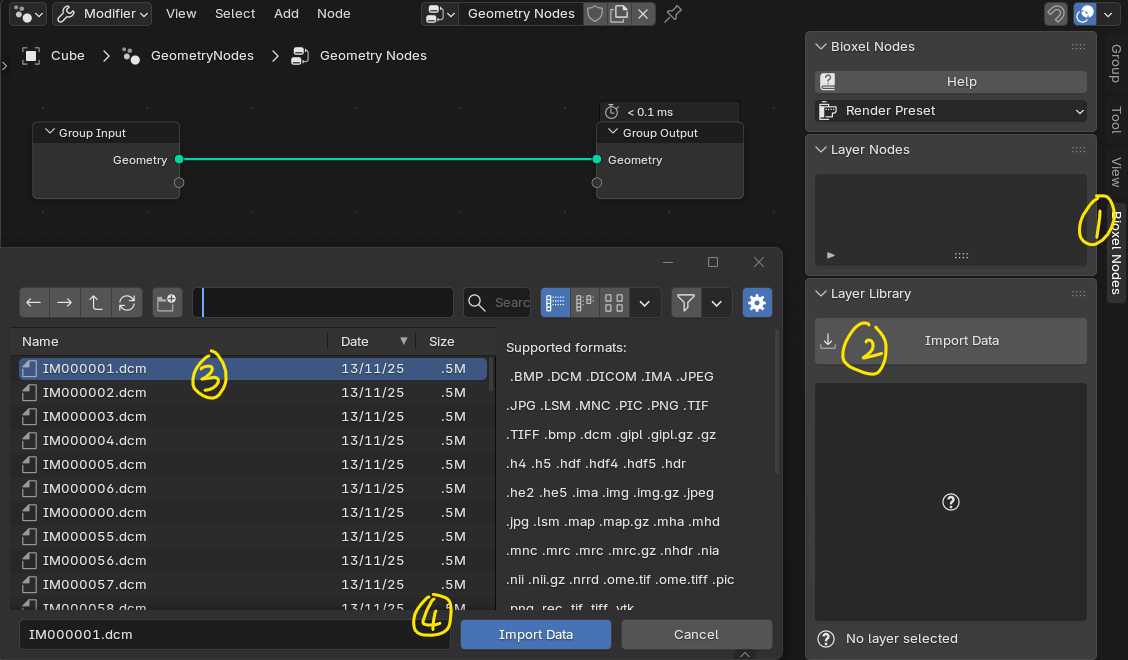
Add a geometry node to the cube and open the geometry node interface sidebar. Switch to the Bioxel Nodes tab (1), click the Import Data button (2), and in the file selection dialog, choose any .dcm file from the data folder (3), then click the Import Data button (4).
Two dialogs will pop up in sequence, click OK for both. Wait for the data import (you can check the progress bar in the Blender interface status bar at the bottom right). After success, you will see a data preview in the Bioxel Nodes sidebar. Click the Add button at the bottom (1), move the mouse to the node panel, and place the O Layer node (2).
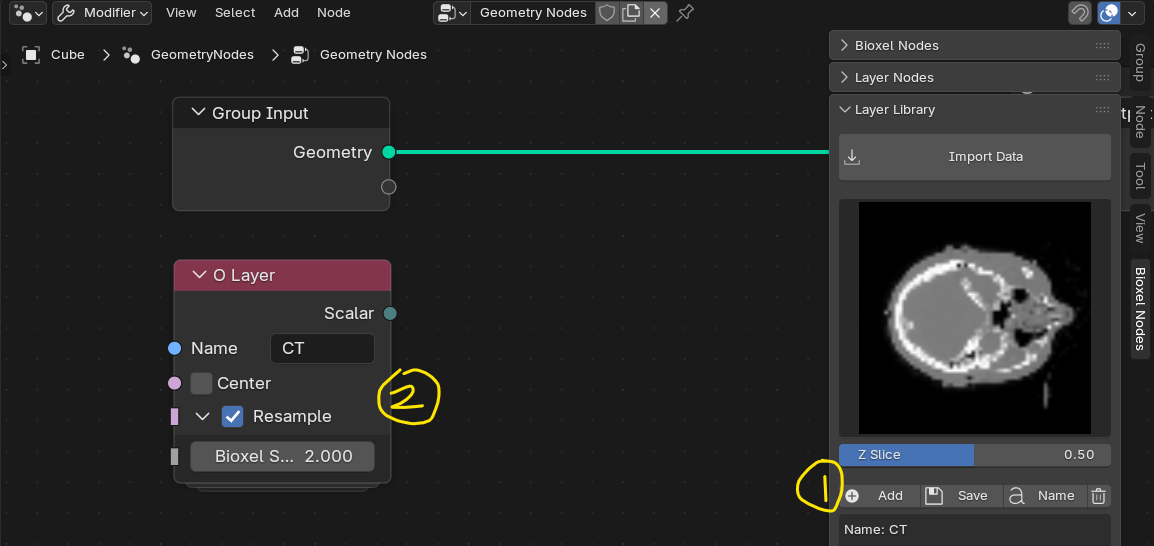
The data import is complete!
The data cache is saved as a link in the Blender file in the form of a "Layer", and the "Layer" is loaded into geometry nodes through the O Layer node. Their relationship is as follows:
Data Cache -> Layer -> O Layer
3. Extract and Render "Structure"
Operations on "Layer" are done through the O Bioxel series geometry nodes.
We need two additional nodes: O Cutout by Threshold and O Realize Structure nodes (both are in the node menu under Add > O Bioxel > Structure), and connect them as shown below:
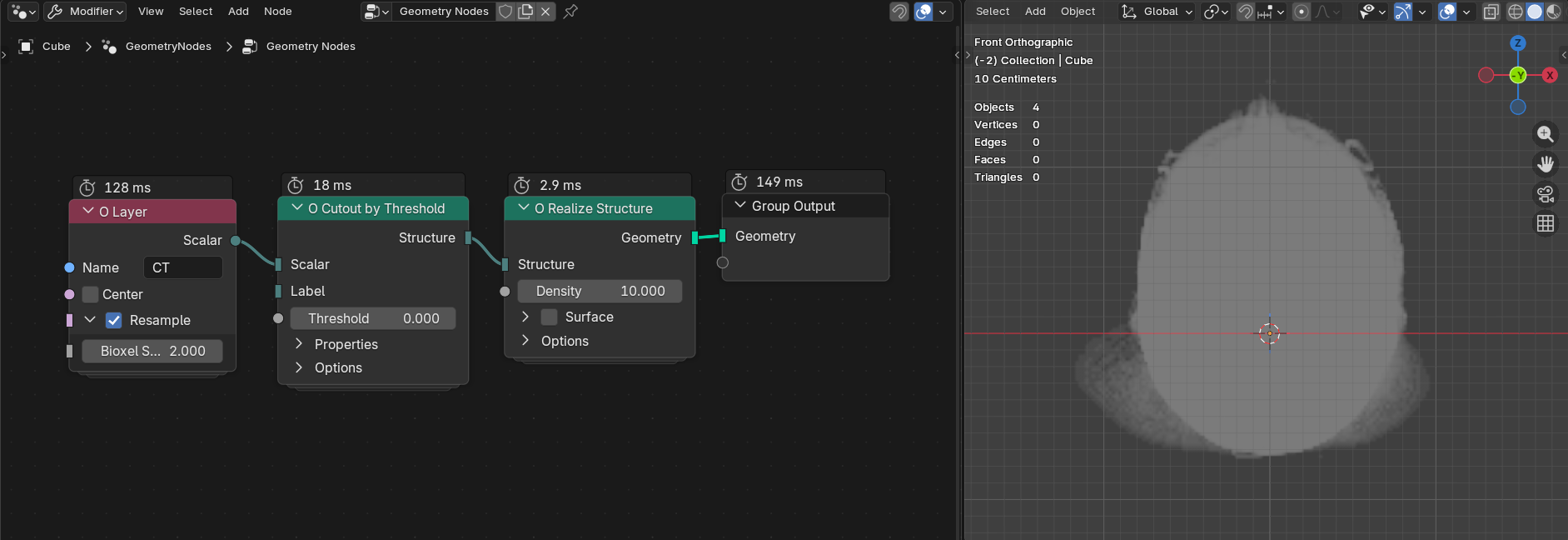
If successful, you will see a gray head appear in the viewport. Now let's adjust the node parameters:
- O Layer: Check Center, uncheck Resample
- O Cutout by Threshold: Set Threshold to 90
- O Realize Structure: Set Density to 40, check Surface
Rotate the object, adjust the light position, set the renderer to Cycles, and the final effect is shown below:
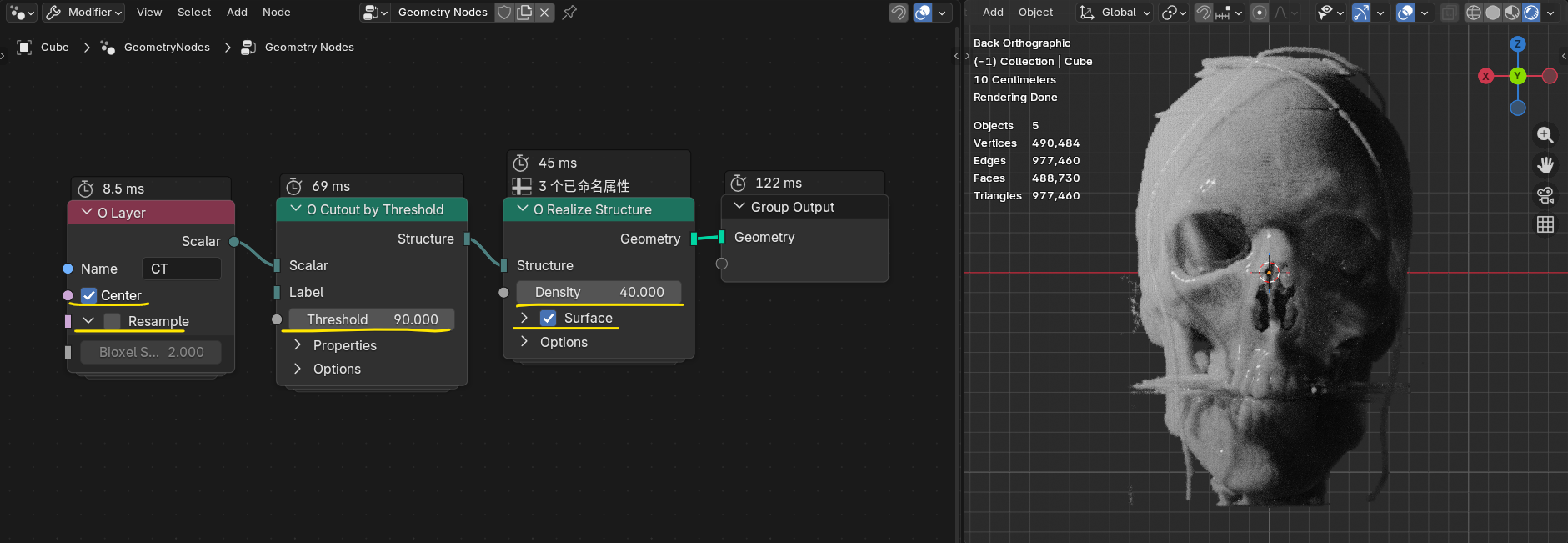
Now we have completed the volumetric rendering of the head CT data!
Let's review the execution logic: First, cutout the "Structure" from the "Layer". As the name suggests, "Structure" is responsible for storing biological tissue structure, but its data type is volumetric and cannot be seen directly. It requires O Realize Structure to present the "Structure".
4. Save Data Cache (Optional)
Since the data cache is only saved as a link in the Blender file, passing only the Blender file to other devices will cause the "Layer" to lose its cache. Click the Save button in the Bioxel Nodes tab, and select a location to save the data cache to manage the cache resource.
Just like images, when sharing, send both the data cache and the Blender file together.